How to setup your BYO router or modem
Last Updated: Monday 21 Sept 2026
For a quick-reference to our necessary device settings, click here.
For screenshots of how we set up common device brands, click here.
How do I check if my modem or router will work with Aussie Broadband?
If you are bringing your device over from another provider, we recommend giving it a factory reset before setting it up. This is usually done by putting an object like a pin, or toothpick. If you are bringing your device over from another provider, we recommend giving it a factory reset before setting it up. This is usually done by putting an object like a pin, or toothpick in a small hole labelled ‘reset’ for 10-15 seconds. If you’re unsure, please refer to your device’s user manual.
Setting up your BYO device
To help you set up, click on your connection type to see it's setup diagram:
Connect your phone, or computer to your device’s network. This can be done through Wi-Fi, or by plugging a computer into the device with an ethernet cable.
Note: When your device is connected to the network, it may say ‘connected, but no internet’. That’s normal at this stage.
If you’re using a smartphone to connect to the Wi-Fi. Make sure that mobile data is turned off.Navigate to the settings page of your device. You can do this by typing the login address into a web browser like Google Chrome, Safari, Firefox, Edge, etc. You can find this address on the sticker on the back or base of your device, or in your user manual.
Note: The most common username is ‘admin’, and the most common password is ‘admin’.
If you’ve changed this password and can’t remember, a factory reset should return it to the password on the sticker.
This username and password is different from the Wi-Fi name and password.
Select your connection type to continue:
Quick-reference settings
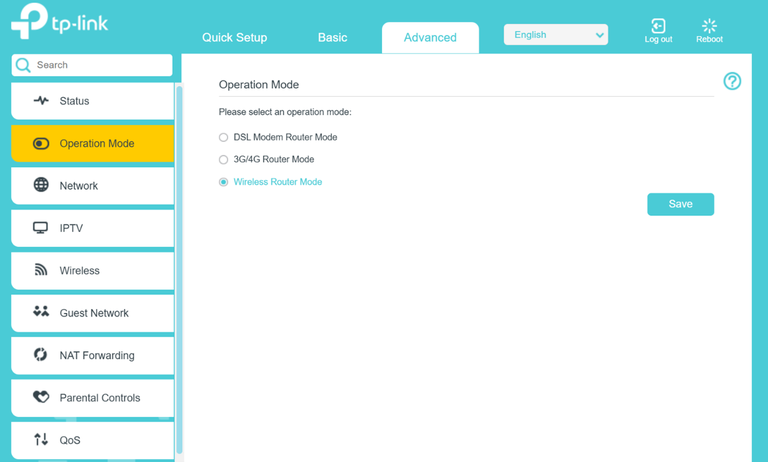
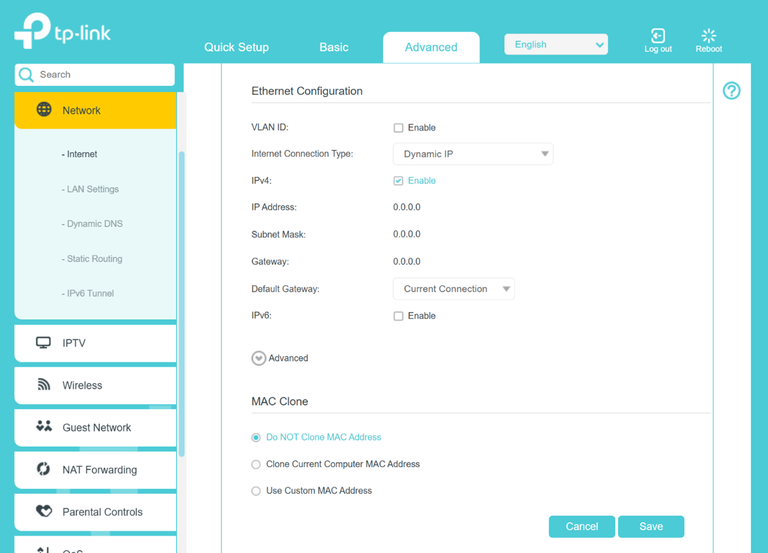
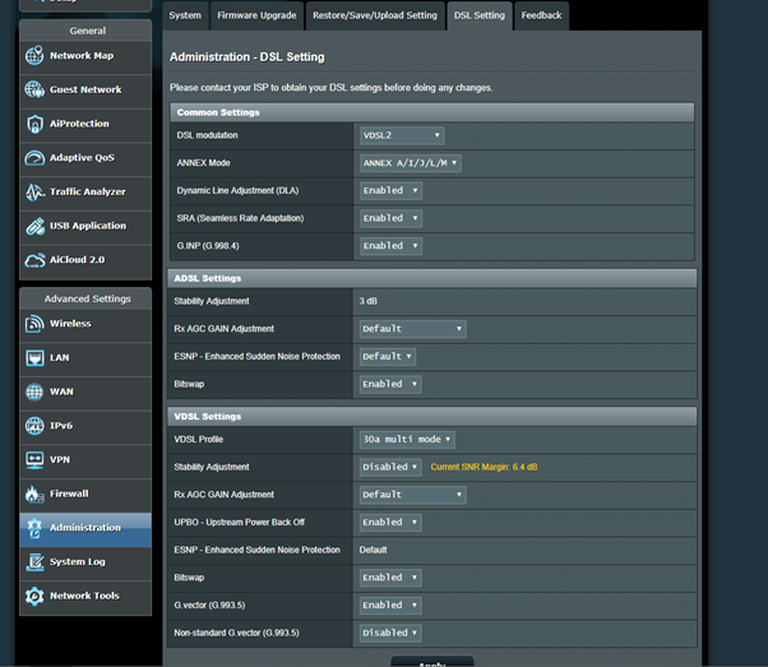
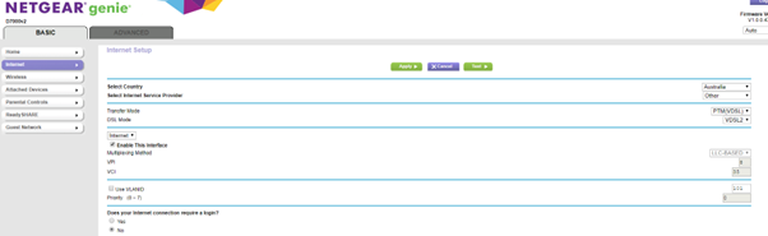
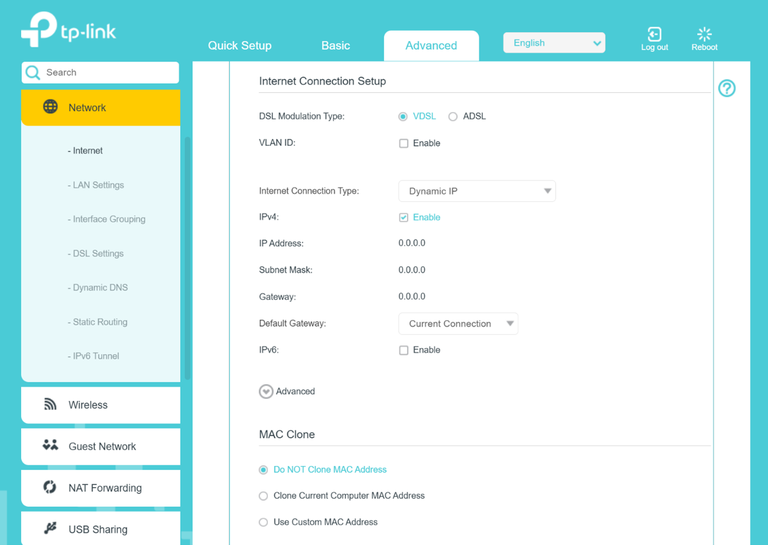
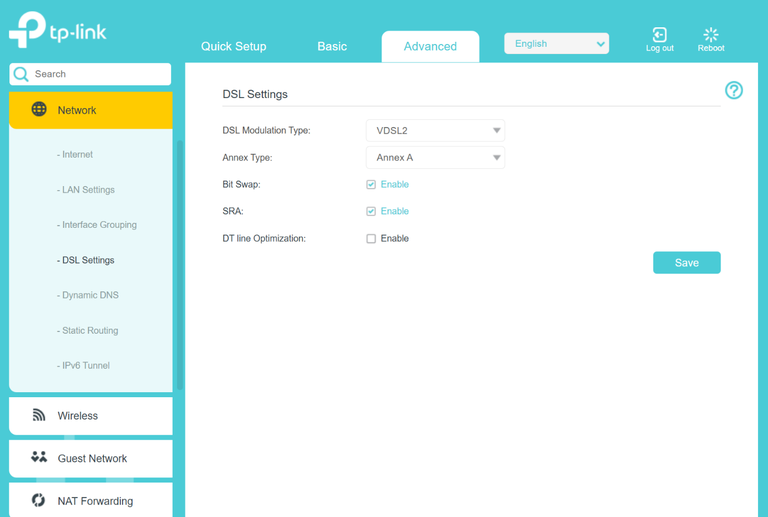
Common device setup screenshots
Note: Screenshots may not match your exact model. If you’re unsure, please refer to your user manual, or reach out to our support team.
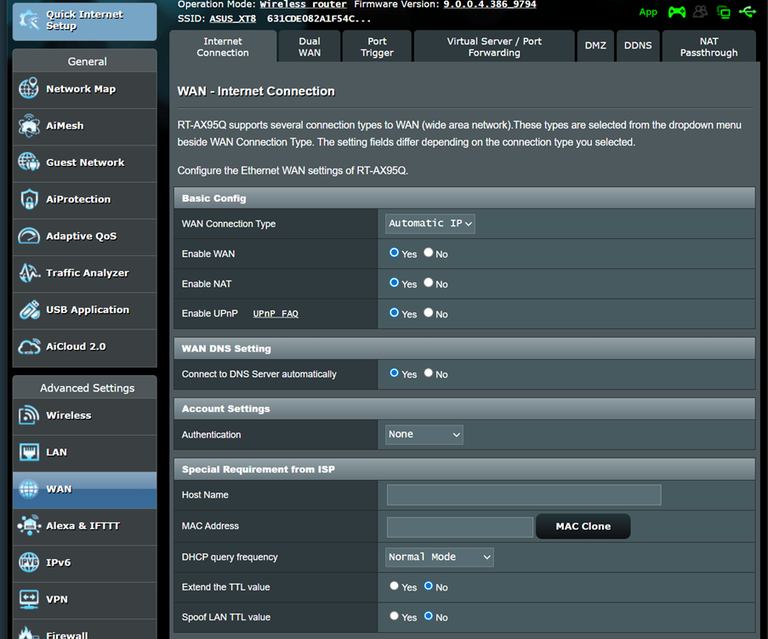
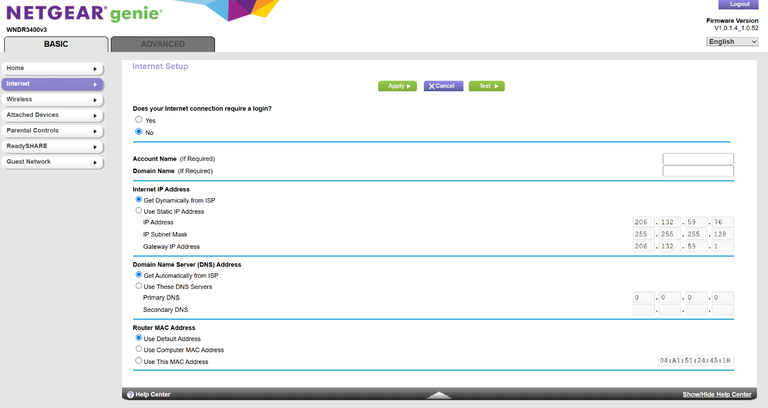
 Netgear
 TP-Link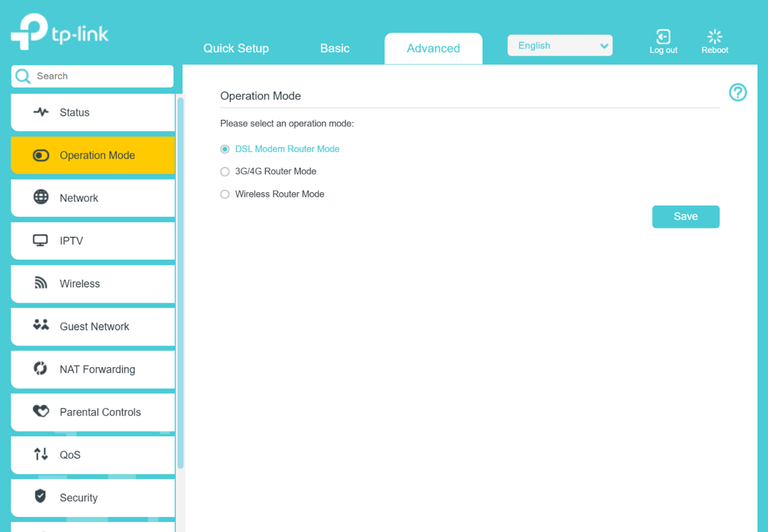
Was this helpful?